If you'd rather not touch settings, add us to your Stripe account and we'll wire it up.
- Log in to dashboard.stripe.com.
- Go to Settings → Team and security → Team.
- Click New member, enter our email, choose the Admin role, and send the invite.
- Tell us it's done. We link Stripe to your account and confirm it's live — usually same day.
Path B — Connect it yourself (about 2 minutes)
- Find Stripe in the list and click Connect.
- Sign in with your Stripe login (or create a free Stripe account if you don't have one yet).
- Confirm. Stripe sends you back and the status flips to Connected.
Turning it on for a calendar
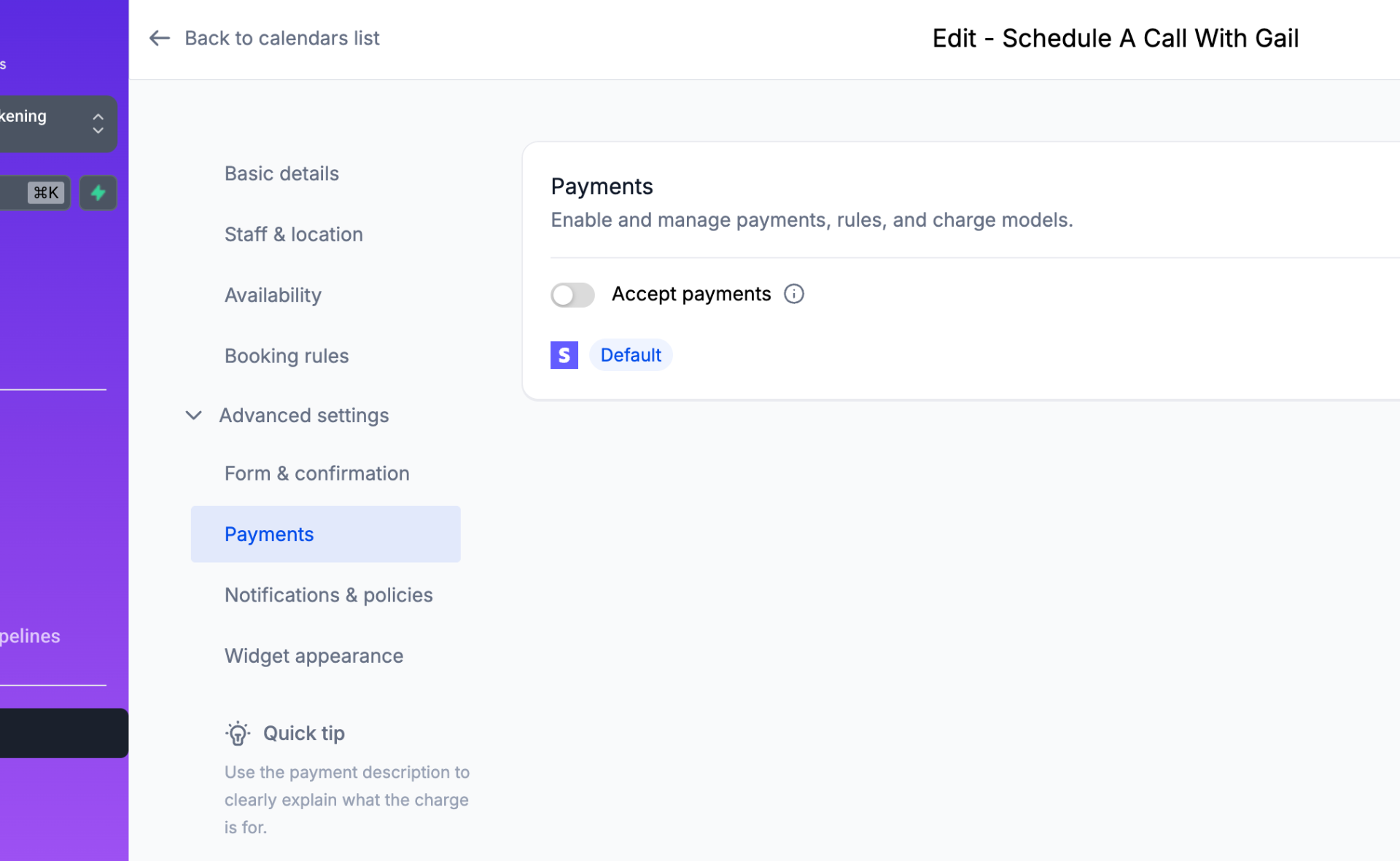
Connecting Stripe doesn't charge anyone by itself — you switch payments on per calendar. Open the calendar and go to:
Toggle Accept payments. Your connected Stripe account shows right there, and you choose a full fee or a deposit.
After you connect: two quick settings
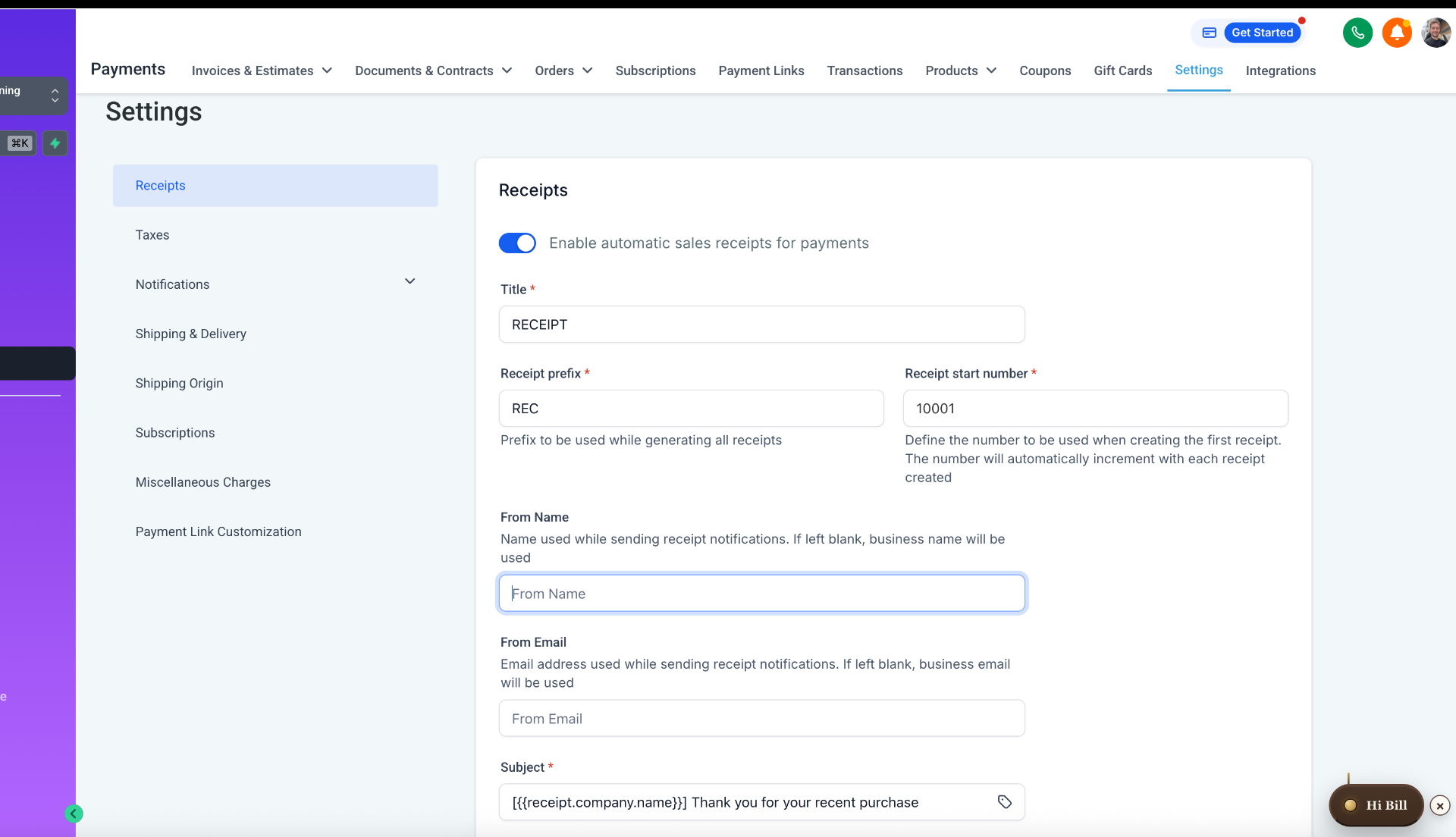
Spend two minutes in Payments → Settings so every charge looks professional:
- Receipts — turn on automatic sales receipts and set the "From" name and email to your practice, so clients get a clean branded receipt the moment they pay.
- Taxes — if you charge tax, add your rate once and it's applied at checkout.
What you can do once Stripe is connected
- Attach a price to a calendar so clients pay a deposit or the full amount when they book.
- Text-to-pay — send a payment link by text or email and get paid in a tap.
- Invoices & estimates — branded, sent automatically after a visit.
- Recurring memberships & programs — subscriptions that rebill on their own.
- In-person — take cards on your phone at the office or a trade show (tap a card or phone, or key the number in — no magstripe swipe).
Common questions
Where does the money go? Straight into your own Stripe account on Stripe's normal payout schedule (typically within a couple of business days). We never hold your funds.
Do I need a separate POS like Square? No. Once Stripe is connected, the built-in mobile checkout doubles as a POS for in-person payments.
Can I change my mind? Yes — disconnect from Payments → Integrations anytime.